How to Record Patient Prescriptions in AfyaWingu: Complete Guide to Section 9
Welcome back to the Afya Wingu Healthcare Management System learning series.
In this article, we walk you through Section 9: Prescription — the part of the system where clinicians create, review, and document all medications prescribed during a patient’s visit.
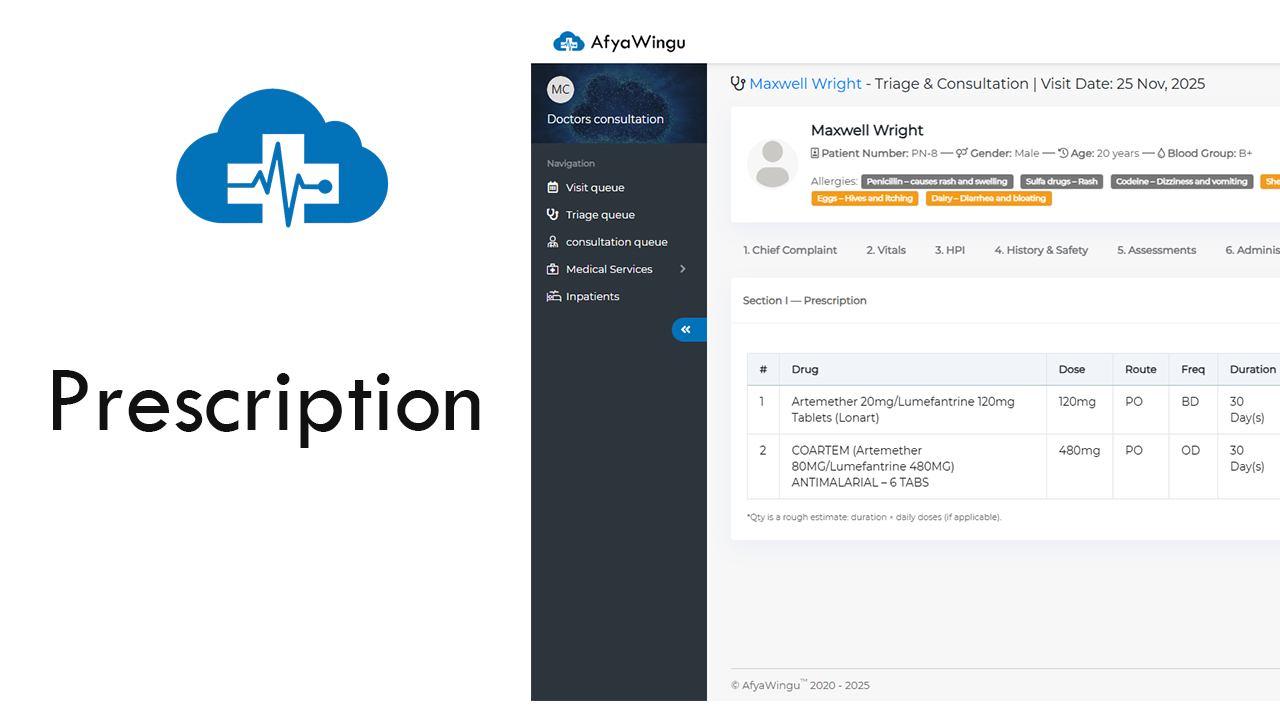
For this example, we’re working on the medical record for Maxwell Wright, a 20-year-old male with a visit date of November 25, 2025. Previous sections such as Chief Complaint, Vital Signs, History of Present Illness, Medical History, Assessments, Diagnoses, and Management Plan have already been completed. Now it’s time to finalize his medication orders.
At the top of the interface, the tab “9. Prescription” appears highlighted in blue — indicating you are in the right section.
🔹 Section I — Prescription Overview
This area displays every medication prescribed during the visit. Each prescription entry includes:
- Drug Name — generic + brand name
- Dose — amount per administration
- Route — how the medication is given (e.g., PO, IV)
- Frequency — how often
- Duration — number of days
- Quantity — total units/tablets required
- Instructions — important patient directions
Example Prescriptions
-
Artemether 20mg / Lumefantrine 120mg (Lonart)
-
- 120mg, PO, BD, 30 days, Qty 1
- Instructions: “take with a lot of water”
-
Coartem (Artemether 80mg / Lumefantrine 480mg)
-
- 480mg, PO, OD, 30 days, Qty 1
- Instructions: “take after eating”
Tip: Always verify the dose, route, and frequency — especially for children, renal patients, and older adults.
🔹 Adding a New Prescription
To write a new prescription, click:
👉 “Add Prescription”
A pop-up window appears with fields to complete.
1. Search or Enter Drug
Start typing the name of the medication.
The system auto-suggests drug names (generic and brand).
Example:
Typing “artem” will surface Artemether, Coartem, and similar options.
2. Enter Dose
Specify the exact amount per dose, including units.
Example: 120mg, 500mg, 5mL, 1g
3. Select Route
Choose how the drug is administered. Common options include:
- PO — oral
- IV — intravenous
- IM — intramuscular
- SC — subcutaneous
- Inhaled
- Topical
- PR — per rectum
- SL — sublingual
- IO — intraosseous (emergency use)
Tip: Consider the patient’s condition.
For example, avoid oral medications in patients with persistent vomiting.
4. Select Frequency
Choose how often the medication should be taken:
- OD — once daily
- BD — twice daily
- TDS — three times daily
- QID — four times daily
- PRN — as needed
- HS — at bedtime
Tip: Use PRN for medications addressing variable symptoms like pain or nausea.
5. Duration (Days)
Enter how long the patient should take the medication.
Examples:
- 7 days for antibiotics
- 30 days for chronic conditions
The system auto-calculates the Quantity based on:
Quantity = Duration × Daily Doses
Example:
30 days × BD (2 doses per day) = 60 tablets
6. Quantity
This field is automatically filled but can be manually adjusted if:
- Giving a partial supply
- Medication stock is limited
- Patient affordability is a concern
7. Instructions
Write clear, patient-friendly directions such as:
- “Take with plenty of water”
- “Take after meals”
- “Do not crush or chew”
- “Avoid alcohol”
- “Store in a cool, dry place”
Avoid medical jargon — patients should fully understand how to take their medications.
8. Add to Prescription
Once all fields are complete, click:
👉 “+ Add to Prescription”
The medication now appears in the main prescription list.
🔹 Managing Prescriptions
On the main prescription page, you can:
Delete a Prescription
Click the red trash bin icon next to the entry.
A confirmation message appears:
“Are you sure you want to delete this?”
Only delete when necessary — Afya Wingu maintains an audit trail for all actions.
🔹 Save Your Work
To ensure your updates are recorded, click:
👉 “Save Information”
Use this after you:
- Add a prescription
- Edit one
- Delete one
- Update instructions or dosage
Important: Afya Wingu does not auto-save prescription changes.
You'll also see a footer note showing:
- Last saved date/time
- Updated by: facility name
This ensures accountability and supports coordinated care.
Conclusion
You’ve now completed Section 9: Prescription in Afya Wingu.
With every medication clearly documented, your treatment plan is:
- Accurate
- Safe
- Traceable
- Ready for printing or pharmacy processing
Thank you for choosing AfyaWingu — digital healthcare made simple, reliable, and efficient for health providers everywhere.