How to Record Clinical Assessments in AfyaWingu (General Appearance, AVPU, ESI Triage Guide)
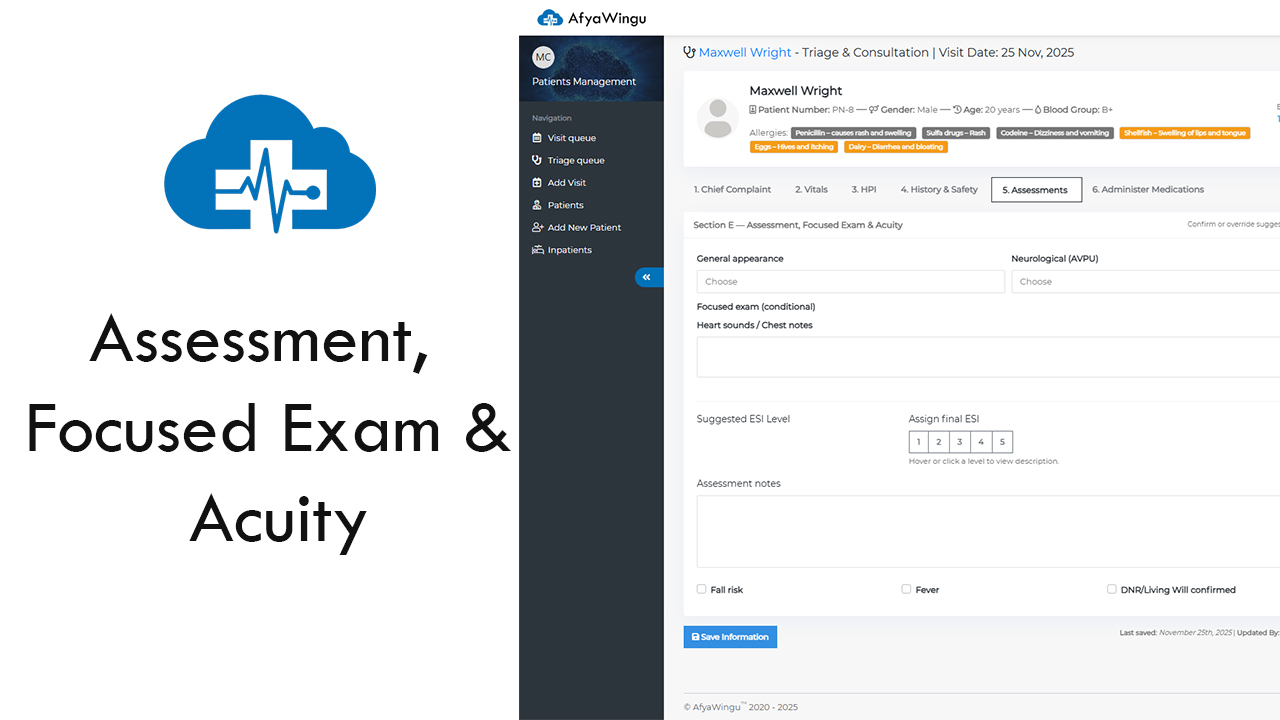
How to Complete Section 5: Assessments in AfyaWingu Patient Management
Welcome back to AfyaWingu Patient Management. In this guide, we walk you through Section 5: Assessments — where clinicians record their clinical impression of the patient using standardized assessment tools like General Appearance, AVPU, and the Emergency Severity Index (ESI).
We continue with the patient record for Maxwell Wright, age 20, male, seen on November 25, 2025. By this stage, you’ve already completed his Chief Complaint, Vital Signs, HPI, and Medical History & Safety. Now it’s time to evaluate his current condition.
The “5. Assessments” tab is highlighted in blue, showing you’re in the correct section.
🔹 Section E — Assessment, Focused Exam & Acuity
This part helps you communicate your patient’s condition quickly and effectively using clear, universal clinical terms.
1. General Appearance
This dropdown describes how the patient looks at first glance.
Options:
- Well-Appearing
- Mildly Distressed
- Moderately Distressed
- Severely Distressed
How to use each:
Well-Appearing
Patient looks comfortable and calm.
Example: “Sitting upright, smiling, answering questions clearly.”
Mildly Distressed
Mild discomfort, slight restlessness or anxiety.
Example: “Complains of mild headache, rubbing temples.”
Moderately Distressed
Visible discomfort or pain.
Example: “Clutching abdomen, breathing fast, grimacing.”
Severely Distressed
Extreme pain or distress, severe breathing difficulty, pale, sweating.
Example: “Crying out, clutching chest, pale and clammy.”
💡 Tip: This is a first-impression tool — trust what you observe immediately.
2. Neurological Status (AVPU)
AVPU assesses the patient's level of consciousness.
Options:
- Alert (A)
- Response to Voice (V)
- Response to Pain (P)
- Unresponsive (U)
When to choose each:
Alert
Fully awake and responsive.
Example: “Opens eyes spontaneously, answers appropriately.”
Response to Voice
Responds only when spoken to.
Example: “Opens eyes when name is called.”
Response to Pain
Responds only to pain stimulus.
Example: “Flinches during sternal rub.”
Unresponsive
No response to voice or pain.
Example: “Eyes closed, no movement.”
💡 Tip: AVPU is essential before any procedure, medication, or sedation.
3. Focused Exam (Optional)
Use this text box to record findings from a quick physical exam.
Example entries:
- “Heart: Regular rhythm, no murmurs.”
- “Lungs: Clear bilaterally.”
- “Abdomen: Soft, tender in epigastric area.”
💡 Tip: Only write what you observed. Keep it brief and objective.
4. Suggested ESI Level
AfyaWingu may suggest an Emergency Severity Index level based on the clinical data.
ESI Levels Explained:
- Level 1: Immediate, life-threatening — needs resuscitation
- Level 2: High-risk, may deteriorate quickly
- Level 3: Stable, requires multiple resources
- Level 4: Stable, needs one resource
- Level 5: Non-urgent, minimal resources needed
💡 The system’s suggestion is a guide — your clinical judgment comes first.
5. Assign Final ESI Level
Choose the ESI level that best matches your assessment.
Example:
If Maxwell has fever, low SpO₂, and moderate distress → ESI Level 2.
Your selection determines the urgency and time the patient waits before seeing a doctor.
6. Assessment Notes
This is your summary of the patient's condition, clinical impression, and recommendations.
Example input:
“Young male with fever, low SpO₂, and epigastric pain. Possible pneumonia or GI infection. Recommend CXR and CBC. Monitor oxygen saturation.”
💡 Tip: Keep notes clear, concise, and clinically relevant.
7. Quick Flags: Fall Risk, Fever, DNR
These checkboxes highlight safety issues quickly.
- Fall Risk: Check if the patient is dizzy, unstable, elderly, or on sedatives.
- Fever: Check if temperature is above 38°C.
- DNR/Living Will Confirmed: Select if the patient has confirmed a Do Not Resuscitate or advance directive.
💡 Always ask:
“Do you have a living will or DNR order?” — especially for older or critically ill patients.
🔹 Quick Overview Panel (Right Side)
Shows:
- Allocated Doctor: Unknown
- Allocated Nurse: Unknown
- Visit Date: November 25, 2025
You can also view the patient's previous visits using the “View Past Visit History” button.
🔹 Live Interpretation Panel
Still displays automated insights based on vitals:
- Fever
- Low SpO₂
These support rapid decision-making during triage.
🔹 Save Your Work
Click “Save Information” after completing this section to ensure your findings are recorded.
You’ll also see:
Last saved: November 25th, 2025 | Updated By: Malaika Center
This ensures transparency and continuity of care.
What’s Next?
After completing Section 5, proceed to:
➡️ Section 6: Administer Medications — to prescribe or provide treatment during triage.
Each step adds crucial detail to the patient’s clinical story, helping doctors make accurate and timely decisions.
Final Thoughts
Section 5: Assessments is the heart of triage.
AfyaWingu makes it simple, structured, and clinically meaningful — empowering healthcare workers with clarity and speed.