How to Document ICD-10 Diagnoses in Afya Wingu: Step-by-Step Guide to Section 7 (Diagnoses)
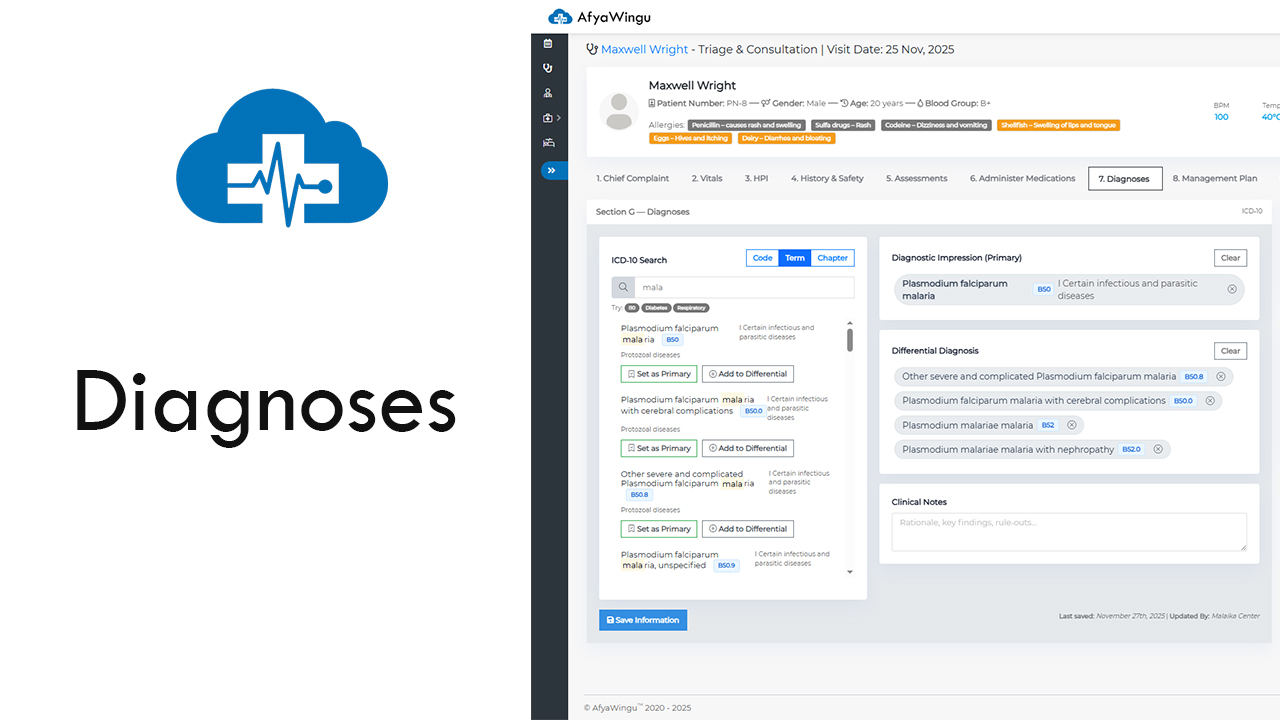
Welcome back to Afya Wingu Healthcare Management System.
In this article, we’re taking you through Section 7: Diagnoses — the stage where clinicians assign standardized ICD-10 diagnoses for proper treatment, reporting, billing, and continuity of care.
For this walkthrough, we continue using the patient record for Maxwell Wright, age 20, male, with a visit date of November 25, 2025. Previous sections of his clinical encounter — including Chief Complaint, Vital Signs, HPI, Medical History, Assessments, and Medications — have already been completed.
Now it’s time to assign accurate clinical diagnoses.
🔷 Understanding Section 7 — Diagnoses
Section 7 allows you to:
- Search for ICD-10 conditions
- Set the Primary Diagnosis
- Add Differential Diagnoses
- Record your clinical reasoning
- Save changes with full traceability
Everything is designed to help clinicians document diagnoses quickly and accurately.
🔷 ICD-10 Search Panel
On the left side, you’ll see the diagnosis search tools. These help you find the correct ICD-10 code using disease names, symptoms, or code numbers.
1. Search Bar
Simply type at least 3 characters into the search field.
Examples:
- Typing mala → shows results like Plasmodium falciparum malaria (B50)
- Typing disease names: “diabetes”, “asthma”
- Typing symptoms: “fever”, “headache”
- Typing ICD-10 codes: “B50”
💡 Pro Tip:
Use common medical terms — the system auto-suggests matching ICD-10 entries as you type.
2. Filter by Category
Below the search bar, you’ll find helpful category filters, such as:
- 🟢 ID — Infectious Diseases
- 🟡 Diabetes
- 🔵 Respiratory Conditions
Clicking any category narrows your search results.
3. Selecting a Diagnosis
Each search result displays:
- Full disease name
- ICD-10 code
- Short classification description
You can choose how to apply the diagnosis:
- Set as Primary → assigns the main diagnosis
- Add to Differential → lists it as a possible alternative
Example:
If malaria is suspected:
- Set B50 — Plasmodium falciparum malaria as the Primary Diagnosis
- Add B50.8 and B52 as Differentials to rule out complications or alternative malaria types
🔷 Diagnostic Impression (Primary Diagnosis)
This box displays the main diagnosis for the visit.
Example:
Plasmodium falciparum malaria — ICD-10 B50
Important rules:
- You can assign only one primary diagnosis per visit
- To change it:
-
- Click Clear
- Search again
- Select a new primary diagnosis
- Click Save Information
⚠️ Remember:
Changes are not saved until you click the Save Information button.
🔷 Differential Diagnosis
This section lists any potential alternative diagnoses the clinician has considered.
Example differential list:
- B50.8 — Other severe P. falciparum malaria
- B50.0 — Cerebral malaria
- B52 — Plasmodium malariae malaria
- B52.0 — P. malariae malaria with nephropathy
These options help document clinical reasoning when diagnostic confirmation is still pending.
To remove an item, click the “x” icon next to it — then press Save Information.
🔷 Clinical Notes
This free-text section is where clinicians explain why they selected the diagnosis.
Example note:
“Patient presents with fever, low SpO₂, and epigastric pain. Rapid malaria test positive. No signs of cerebral or renal involvement. Primary diagnosis: uncomplicated P. falciparum malaria. Differentials considered: typhoid, dengue, pneumonia.”
Tips for good notes:
- Be clear and concise
- Document reasoning
- Mention tests used to support diagnosis
- List conditions ruled out
These notes provide crucial insight for other clinicians reviewing the case.
🔷 Save Your Work
This is the most important step.
Click the blue “Save Information” button any time you:
- Add a new diagnosis
- Change the primary diagnosis
- Add/remove differentials
- Edit clinical notes
You’ll also see a timestamp such as:
Last saved: November 27, 2025 | Updated By: Malaika Center
This ensures transparency and accountability.
🎉 Conclusion
You’ve now learned how to use Section 7: Diagnoses in Afya Wingu:
- Search ICD-10 codes
- Assign a Primary Diagnosis
- Add Differential Diagnoses
- Record clinical reasoning
- Save with full audit trail
Accurate diagnosis documentation supports better treatment, reporting, billing, and continuity of care.
Up Next:
➡️ Section 8: Management Plan — outlining treatment, follow-ups, and referrals
➡️ Section 9: Prescription — generating prescriptions for medications and labs
Thank you for choosing Afya Wingu — making healthcare documentation simple, accurate, and fully traceable.